Getting in touch with our support team is quick and straightforward. Whether you have a simple question or a technical issue, the Interactive Vision Help Desk is the fastest way to get assistance.
Accessing the Help Desk
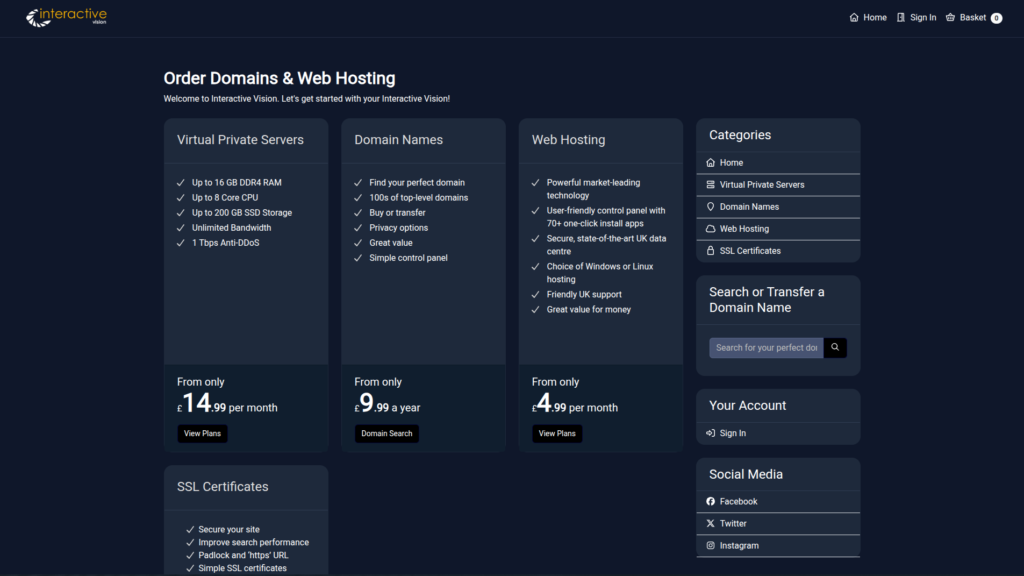
- Head over to the invi control panel at
my.invi.uk. - Click on Sign In at the top right of the page (if you aren’t already logged in) and enter your account email and password.
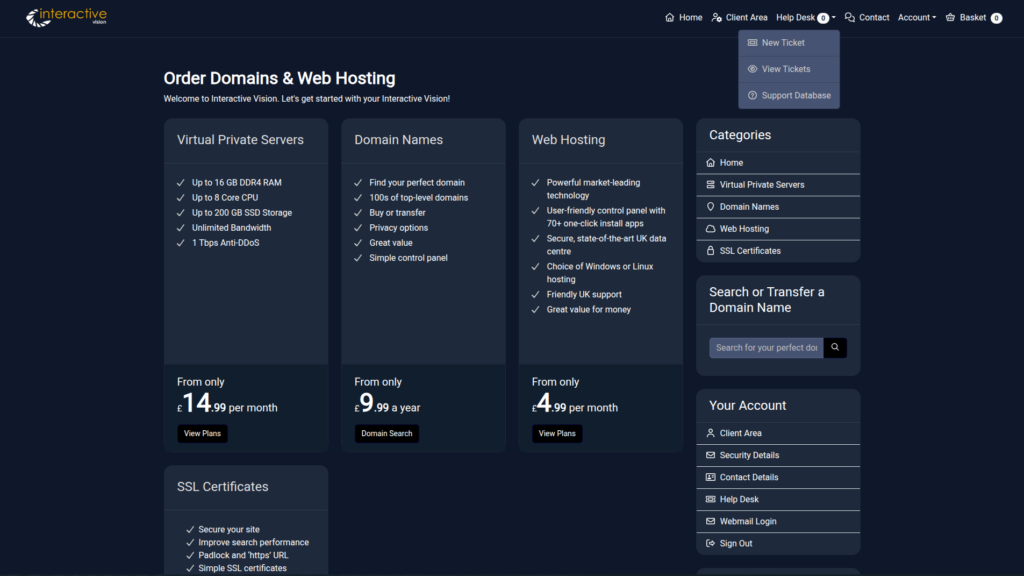
- Once logged in, look at the top navigation bar and select Help Desk.
- Note: You will notice a small white circle next to ‘Help Desk’—this handy indicator shows exactly how many open tickets you currently have!
Creating a New Ticket
- From the Help Desk dropdown menu, click New Ticket.
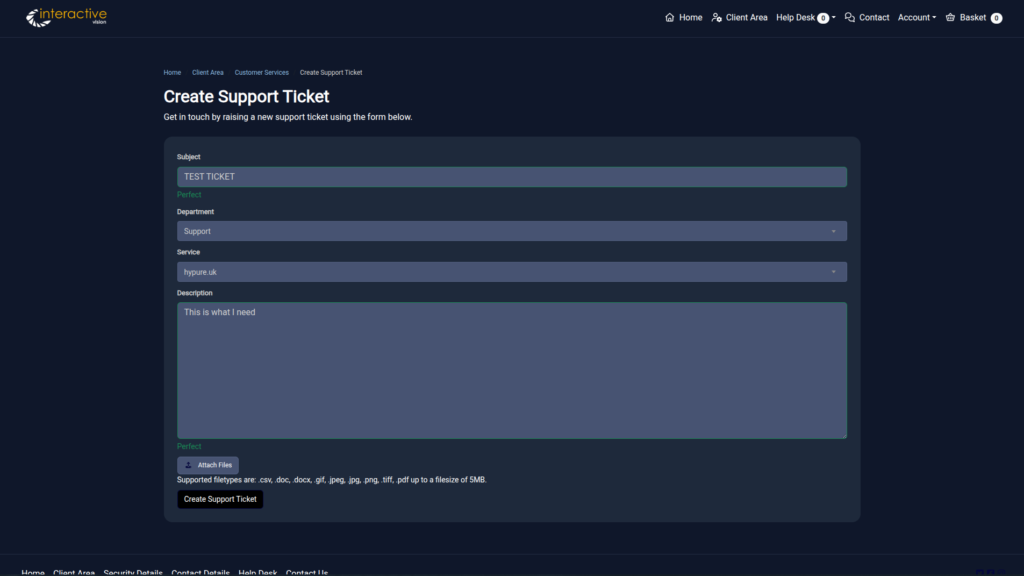
- To help us resolve your issue as quickly as possible, please fill out the form with the following details:
- Subject: Provide a clear, straight-to-the-point title so our operators know exactly what the issue is at a glance.
- Department: Choose the most relevant team from the dropdown menu (e.g., Support, Sales, or General Enquiries).
- Service: If your issue is regarding a specific package, select it from the dropdown. If it is a general account issue or relates to all of your packages, you do not need to select one.
- Description: Give us as much detail as possible about the issue. The more context you provide, the faster our support team can get straight to the point and help you directly.
- Attach Files (Optional): If you have screenshots or documents that help explain the issue, click Attach Files. (Note: Supported filetypes are .csv, .doc, .docx, .gif, .jpeg, .jpg, .png, .tiff, and .pdf, up to a maximum filesize of 5MB).
- Once everything is filled out, click the Create Support Ticket button to submit your request.
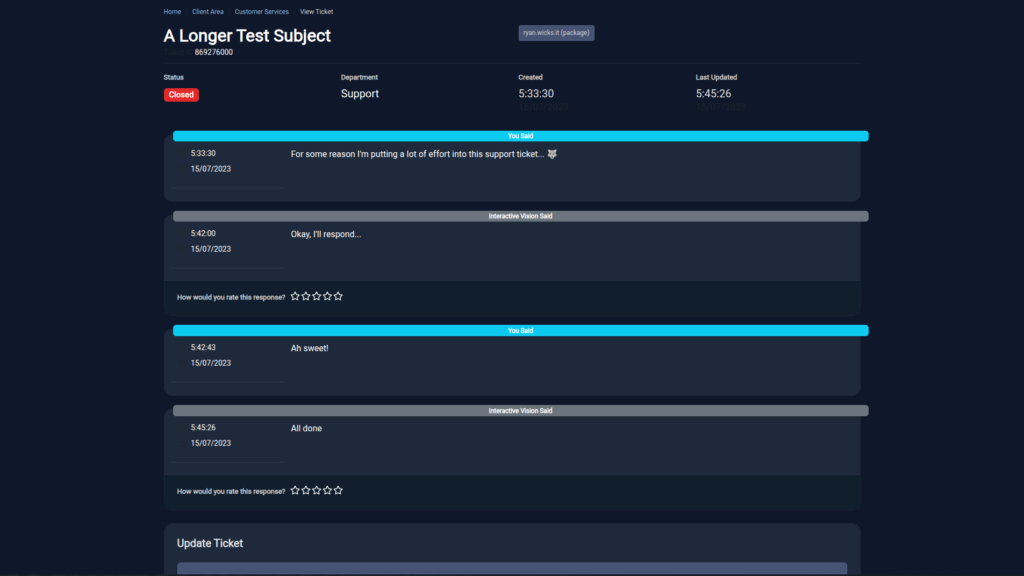
Managing Your Tickets You can always return to the Help Desk and select View Tickets from the dropdown menu to track your progress.
From the View Tickets screen, you can see all of your open and closed requests, read responses from the invi team, provide further updates, or securely close and reopen tickets as needed. You can even rate the responses you receive to let us know how we are doing!